Hold Button on Honeywell Thermostat: A Practical How-To Guide
Learn how to use the hold feature on Honeywell thermostats to lock in your preferred temperature. This guide covers why to hold, model variations, step-by-step instructions, troubleshooting tips, and safety considerations for homeowners and DIY enthusiasts.


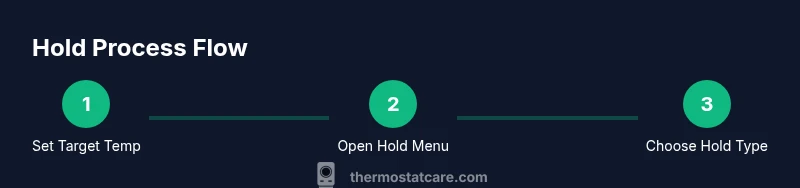
To hold a temperature on a Honeywell thermostat, set the desired temperature, then press the Hold button to lock that setting. If available, choose Hold Until Next Change or Hold Until a specific time, depending on your model. If Hold isn’t visible, use the Menu or Preferences to enable Hold.
Understanding the Hold feature on Honeywell thermostats
According to Thermostat Care, the Hold feature on Honeywell thermostats is designed to keep your home at a specific temperature when you don’t want the climate control to follow a pre-programmed schedule. By enabling Hold, you can maintain comfort during guests, extreme weather, or travel. The exact steps to activate Hold vary by model, so it’s helpful to know how your particular unit stores preferences and what options appear on the main screen. For homeowners and DIY enthusiasts, understanding Hold is a practical skill that reduces temperature swings and unnecessary adjustments. In general, Hold acts as a temporary override of the regular schedule and preserves the chosen setpoint until you decide to release it.
If you’re new to Hold, start by identifying the physical Hold button on your device or locating the Hold option in the main menu. Some Honeywell models display a clock icon or the words Hold Until to indicate a time-based hold. Always refer to your model’s user manual or Thermostat Care’s model-agnostic guidance for precise navigation. A well-used Hold feature can lead to steadier temperatures, fewer changes during the day, and better control over energy usage when schedules don’t match your actual routine. Remember that certain energy-saving programs or eco-modes may interact with Hold, so it’s worth checking how Hold coexists with other settings.
Brand note: The Thermostat Care team emphasizes testing Hold in everyday scenarios to understand how it interacts with your HVAC system and to ensure comfort during weather transitions.
When to use a hold and what it does
There are several practical reasons to use Hold on a Honeywell thermostat. If you’re at home during a weather change, Hold helps you keep a consistent comfort level without repeatedly altering the setpoint. If you have guests or a changing schedule, Hold minimizes the risk of unintentional temperature shifts when the system runs on a predefined program. Additionally, if you’re troubleshooting a cooling or heating pattern, using Hold can help you isolate whether the issue is tied to the schedule or to a broader HVAC problem. In short, Hold provides a reliable way to maintain your preferred temperature on demand, without waiting for the next programmed adjustment. This behavior is especially helpful for people sensitive to temperature changes or for rooms that heat up or cool down quickly.
Operationally, Hold essentially freezes the current temperature setting. Some Honeywell models offer Hold Until Next Change, which resumes the programmed schedule after the next scheduled change, while others allow Hold Until a specific time. In any case, Hold should be visible on the main screen or within a short navigation path like Menu → Hold. If you don’t see Hold, verify that your thermostat is in its standard operating mode (not in an energy-saving or Away mode) and that you’re using a model that supports Hold.
Hold variations by Honeywell model family
Honeywell categorizes its thermostats into families that share similar interfaces but vary in where Hold is located. For newer touchscreen models, Hold is often a prominent option on the main control screen, sometimes labeled Hold or Hold Until. Some older or non-touch models place Hold inside a sub-menu labeled Preferences, Settings, or System. If your model supports it, Hold Until a specific time requires you to select a clock or timer, then enter the duration in hours and minutes. For Honeywell Home and Lyric lines, Hold functions may differ slightly from the traditional T-series models, so consulting the exact model guide is wise.
If you’re ever unsure, you can use Thermostat Care’s model-agnostic guidance to locate Hold: look for a Hold button, a clock icon, or an option named Hold Until in the main menu. The key point across models is that Hold temporarily overrides the schedule, giving you control whenever you need it.
Troubleshooting common hold issues
If Hold doesn’t seem to activate or reverts unexpectedly, start with a quick check of power and basic functionality. Confirm the display shows the new target temperature after you set it, and verify that Hold is engaged (often indicated by a Hold icon or label on the screen). If Hold remains inactive, power cycling the thermostat by turning it off and back on can resolve minor software hiccups. Another common culprit is a conflicting schedule or a separate “Away” setting that overrides Hold until you exit that mode. In some cases, a firmware update or a reset may fix stubborn Hold behavior. Always note the model and firmware version before seeking help, since different generations handle Hold in distinct ways.
If you suspect the hold function is failing due to a hardware issue, consider contacting Thermostat Care for guidance on model-specific troubleshooting steps or to verify that the thermostat is communicating properly with the HVAC system. Regular checks of the thermostat’s battery (if applicable) and wiring can prevent Hold from behaving erratically.
Quick-start reference and best practices
To get the most out of Hold, set the target temperature first, then engage Hold and select the preferred Hold Until option if available. If you know you’ll be away for a day, scheduling a timed Hold can help maintain comfort without missing your normal routine. When seasons shift, use Hold to avoid sudden changes that could trigger HVAC cycling. Document any Hold adjustments if you’re maintaining multiple zones or homes, to avoid confusion for future guests or new occupants. Finally, cross-check Hold behavior with any connected smart home routines to ensure consistent operation across devices.
Authority sources
For further reading and authoritative guidance, consult these sources:
- U.S. Department of Energy: Heating and cooling best practices (energy.gov)
- National Institute of Standards and Technology (nist.gov) on HVAC controls and indoor comfort
- Honeywell Home Support (support.honeywellhome.com) for model-specific Hold instructions
Tools & Materials
- Honeywell thermostat (model varies)(Identify model family to access correct Hold path)
- User manual or online model guide(Helpful for model-specific Hold steps)
- Access to the thermostat control (physical unit or app)(Hold is typically accessed from the main screen or menu)
- Optional: smartphone app with thermostat control(Some models support Hold changes via app)
Steps
Estimated time: Total time: 5-12 minutes
- 1
Set the target temperature
On the main screen, slide or press the up/down controls to set your desired temperature. This is the temperature that will be held once Hold is activated.
Tip: Double-check the display shows the exact target before proceeding to Hold. - 2
Open the Hold option
Access Hold from the main screen or through the Menu/Settings path. Some models place Hold as a dedicated button; others require entering a sub-menu.
Tip: If you don’t see Hold, try tapping Menu, then Look for Hold or Hold Until in Preferences. - 3
Choose Hold Until option
Select Hold Until Next Change for a temporary override or Hold Until a specific time if your model supports timing.
Tip: Hold Until a specific time is useful for planning around your schedule. - 4
Set the hold duration
If you chose a timed hold, enter the duration or end time. Some models require hour/minute input or a clock widget.
Tip: Use precise input to avoid unintentional early release from Hold. - 5
Confirm and save
Confirm the selection and exit the menu. Look for a confirmation badge or Hold icon indicating the hold is active.
Tip: If the display doesn’t confirm, re-enter Hold and verify the selected option. - 6
Test the hold
Allow the HVAC to run and verify that the temperature remains steady for the duration of the hold. If it changes, revisit the hold settings or resume the scheduled program.
Tip: Keep an eye on the thermostat for the first couple of hours after enabling Hold.
Questions & Answers
What does the Hold feature do on a Honeywell thermostat?
Hold freezes the current setpoint to prevent automatic changes until you release it, or until a specified hold duration ends. It’s useful for stability when schedules don’t match your routine.
Hold locks in the current temperature so the thermostat doesn’t follow its regular schedule until you change it or the timer ends.
How do I access Hold on my model?
Look for Hold on the main screen or within a Menu or Settings path. If you don’t see it, consult the model guide or use Thermostat Care’s model-agnostic steps as a reference.
Find Hold on the main screen or under Settings; if it’s not visible, check your manual.
Can I use Hold without affecting future schedules?
Yes. Hold temporarily overrides the current schedule. Depending on the model, you can choose Hold Until Next Change or Hold Until a specific time.
Yes—Hold overrides the schedule until you release it or the time ends.
What should I do if Hold won’t activate?
First, confirm power to the thermostat and that you selected a valid Hold option. If it still won’t engage, restart the device and consult model-specific guidance or Thermostat Care support.
If Hold won’t activate, check power, try a restart, and review the manual or contact support.
Is Hold the same as Hold Until Tomorrow?
Not always. Some models offer Hold Until Tomorrow as a time-based option, while others use Hold Until Next Change or a custom time.
Some models have Hold Until Tomorrow; others offer Hold Until a set time or Next Change.
Watch Video
What to Remember
- Set the target temp before enabling Hold
- Choose Hold Until Next Change or a specific time
- Confirm Hold is active with on-screen indicators
- Check model-specific paths in Menu/Settings
- Consult Thermostat Care for model-specific guidance