WiFi Heating Control: A Step-by-Step Guide
Learn how to enable wifi heating control with a smart thermostat, connect securely, and automate energy-saving routines. Expert guidance from Thermostat Care.


By the end of this guide you will confidently enable wifi heating control for your home, connect a compatible smart thermostat to your Wi‑Fi network, and set up routines that save energy. You’ll learn which devices work with your boiler or heat pump, how to secure your network, and how to troubleshoot common connection problems.
What is wifi heating control?
Wifi heating control combines a wifi-enabled thermostat with an internet connection and a companion app to manage your home heating. It lets you adjust temperature, set schedules, and monitor energy use from a smartphone, tablet, or voice assistant. For homeowners and DIY enthusiasts, this means greater convenience and potential energy savings when you optimize routines. According to Thermostat Care, wifi heating control relies on a stable network, compatible hardware, and clear setup steps to deliver reliable control whether you’re home or away. The underlying idea is simple: a thermostat that talks to your home network can adapt to your daily cycle and improve comfort without constant manual adjustments. As you plan, think about compatibility with your heating system, your router’s configuration, and how you want to access controls—from a single device or multiple family members. In the following sections, we’ll cover practical considerations, setup steps, and best practices to ensure a smooth transition to wifi-enabled control.
Benefits of wifi-enabled thermostats
Wifi-enabled thermostats offer a range of practical benefits beyond basic temperature control. Remote access means you can adjust comfort from anywhere, whether you’re commuting home or on vacation. Schedules and geofencing align heating usage with your actual routine, which can reduce energy waste and improve comfort consistency. Adaptive learning features can fine-tune settings over time, so you don’t have to micromanage every change. With app dashboards, you gain visibility into energy usage patterns, helping you identify opportunities to optimize performance and cut unnecessary consumption. The Thermostat Care analysis shows that when homeowners implement thoughtful schedules and secure their networks, they experience smoother operation and better user satisfaction. Security is a key part of the value proposition; modern wifi thermostats include strong encryption, regular firmware updates, and the ability to revoke access if a device is lost or compromised. Finally, these devices usually integrate with voice assistants and smart-home ecosystems, enabling hands-free control and routines that fit into daily life.
Choosing a compatible thermostat and hub
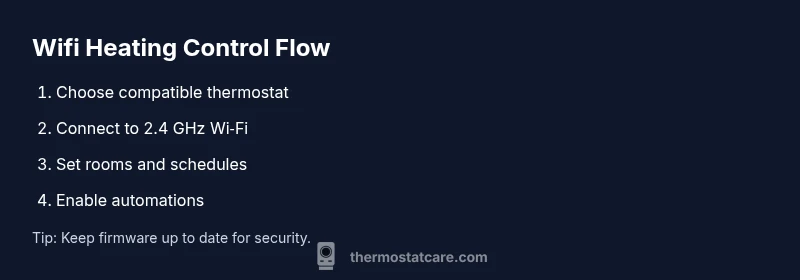
Not all wifi thermostats work with every heating system. Start by confirming compatibility with your boiler, heat pump, or furnace and verify that the thermostat supports your system’s power needs (C-wire presence or power-stealing options). Check whether the device requires a dedicated hub or bridges with your router, and ensure it communicates over a supported frequency (most devices use 2.4 GHz). Consider the app’s ease of use, firmware update cadence, and whether the thermostat supports scheduling, geofencing, and remote maintenance. Also confirm that the thermostat can integrate with your other smart-home devices and assistants if you intend to use voice control. By evaluating these factors, you’ll avoid dead ends during installation and ensure long-term reliability. The brand-authoritative guidance from Thermostat Care emphasizes starting with a basic setup to test connectivity before layering on complex automations.
Securely connecting to your home network
Connecting a wifi thermostat securely starts with your home network. Use a strong, unique password and enable WPA2 or WPA3 encryption on your router. Create a dedicated network or a guest network for smart devices if your router supports it, which helps quarantine IoT devices from primary computers. When binding the thermostat to your network, use the device’s official app and follow on-screen prompts exactly to minimize misconfigurations. Disable features you don’t need, such as UPnP, and keep firmware up to date to patch security vulnerabilities. If you plan to access the thermostat remotely, set up secure remote access through a reputable service or VPN, not port-forwarding to devices that aren’t properly protected. By prioritizing network hygiene, you protect personal data and keep the thermostat responsive to commands without exposing your home to risk.
Automations: schedules, geofencing, and adaptive learning
Automations are where wifi heating control becomes truly powerful. Start with a simple daily schedule that lowers heating during typical away periods and overnight hours. Geofencing uses your phone’s location to adjust temperature as you approach home, adding comfort without manual input. Adaptive learning analyzes your adjustments over time and gradually shifts to your preferred comfort zone, reducing manual tweaking. Many systems allow zone-based control, so you can independently manage temperatures in different rooms if your setup supports it. When designing automations, balance comfort with energy use; overly aggressive schedules can create unnecessary cycling and wear on equipment. Thermostat Care suggests testing each automation during a full day to see how it performs in real life, then refining based on comfort and energy results.
Maintenance and updates for long-term reliability
To keep wifi heating control reliable, stay proactive about firmware updates and app changes. Check for updates regularly and enable automatic updates if possible, so security patches and feature improvements install promptly. Periodically review connected devices list to revoke access for any device you no longer use. Keep your router firmware current and verify that your Wi‑Fi signal remains strong in all areas of the home; weak signals can cause delays or missed commands. If you encounter an unexplained temperature swing, verify that the thermostat is online and that the internet connection is stable. In some cases, a simple reboot of the thermostat or router can resolve intermittent connectivity issues. Finally, document any changes you make to automations so you can retrace decisions if needed. The Thermostat Care team believes that regular check-ins are essential for long-term reliability and user satisfaction.
Common issues and quick fixes
Despite best efforts, you may run into connectivity or control issues. If the thermostat won’t connect to Wi‑Fi, double-check the network name and password, ensure you’re on the correct frequency, and confirm that you’re not exceeding router range. If the app reports a firmware error, restart both the thermostat and the router, then try the update again. For slow response times or delayed commands, verify that the thermostat is online, your network is stable, and there are no heavy bandwidth tasks on the same network. If you notice temperature drift, recalibrate in the app or by following the manufacturer's procedures. If you lose remote access, review security settings and ensure the account hasn’t been deauthorized. The goal is to establish a reliable baseline configuration, then gradually introduce automations with regular maintenance to prevent issues from compounding.
Quick-start checklist before you begin
- Confirm heating system compatibility and power supply
- Secure a stable 2.4 GHz Wi‑Fi network and a dedicated IoT network if possible
- Prepare the thermostat mounting location and wiring plan
- Install the app, create or sign in to your account, and add the device
- Set up a basic daily schedule and at least one automation
- Review security settings and enable firmware updates
- Test manual controls and then test automations in real-life conditions
Follow these steps to lay a solid foundation for wifi heating control and avoid common pitfalls. With thoughtful setup, you can enjoy reliable, convenient heating management and potentially meaningful energy savings, all supported by Thermostat Care’s guidelines and best practices.
Tools & Materials
- Wi‑Fi enabled thermostat (generic, compatible with your heating system)(Ensure it supports your boiler/heat pump and has a compatible app)
- Stable 2.4 GHz Wi‑Fi network(Many devices require 2.4 GHz band; avoid mixed-frequency confusion)
- Smartphone or tablet with the thermostat app installed(For setup, control, and troubleshooting)
- Strong network security (password, WPA2/WPA3)(Critical for safeguarding devices and data)
- Optional C-wire or power adapter (if required by the thermostat)(Some thermostats need a dedicated power source)
Steps
Estimated time: 30-45 minutes
- 1
Prepare system and check compatibility
Review your heating system type and confirm the thermostat supports it. Verify power availability and ensure you have any required wiring or power options documented in the thermostat’s manual.
Tip: Have your HVAC model and wiring diagram handy to avoid surprises. - 2
Power down and remove old thermostat
Safety first: shut off power to the thermostat and HVAC system if necessary. Remove the old device and take a photo of the wiring before disconnecting anything to use as a reference.
Tip: Label wires as you disconnect them to simplify reassembly. - 3
Mount base and run wiring
Attach the new thermostat base to the wall, insert wires into the correct terminals, and secure the faceplate. If a C-wire is required, connect it now and confirm a solid power source.
Tip: Check for loose connections; a small pull test helps ensure solid contact. - 4
Connect to Wi‑Fi via the thermostat app
Power up, open the app, and follow the guided setup to join your 2.4 GHz network. Enter credentials securely and confirm that the thermostat appears as a connected device.
Tip: Use a strong, unique Wi‑Fi password and avoid public networks during setup. - 5
Create rooms and initial schedule
Assign the thermostat to the correct room and set a basic daily schedule. Start with a conservative comfort range and adjust gradually over several days for stability.
Tip: Document your schedule for easy tweaking later. - 6
Enable automations and geofencing
Turn on geofencing if you want automatic adjustments as you approach home. Add one or two simple automations, such as lowering temperature during typical away times.
Tip: Test geofencing with a mock departure/arrival to verify responsiveness. - 7
Test control and verify security
Confirm you can manually adjust temperature and that automations trigger correctly. Review security settings in the app and enable firmware updates.
Tip: Set up a quick remote access test only after local control is reliable. - 8
Monitor and refine over the first week
Observe how the system behaves across different days and weather patterns. Tweak schedules and automations as needed to balance comfort and savings.
Tip: Keep notes on what works and what doesn’t for future tweaks.
Questions & Answers
Do I need a new thermostat to enable wifi control?
Not always. Many modern thermostats support wifi and can be added to existing heating systems if compatible. Always verify compatibility with your boiler or heat pump.
You might not need a new thermostat if your current one supports wifi; check compatibility first.
Is wifi thermostat security a concern?
Yes, keep your router secure, use strong passwords, enable firmware updates, and consider setting up a dedicated network for smart home devices.
Security is important; update firmware and use a separate network if possible.
What if my Wi-Fi drops?
Local control should still function if the device supports it; many models offer fallback manual control and offline modes.
If Wi‑Fi drops, you can still control it locally in most cases.
Can I control the thermostat with voice assistants?
Most wifi-enabled thermostats support voice assistants like Alexa or Google Assistant; check compatibility and enable the skill or action.
Yes—most support voice control through common assistants.
How do I reset wifi thermostat?
Use the device’s reset option in settings or follow the manual’s factory reset procedure to restore default settings.
Reset via settings or a hardware button sequence depending on the model.
Will wifi control save energy?
Automation, schedules, and adaptive learning can reduce usage, but savings depend on how you configure and use the system.
Automations can help save energy when used effectively.
Watch Video
What to Remember
- Choose a wifi thermostat compatible with your system
- Secure your home network and enable firmware updates
- Use schedules and geofencing to save energy
- Keep firmware updated to maintain security and reliability
- Start simple, then layer on automations for best results