Nest thermostat and Alexa: A step-by-step guide to voice-controlled comfort
Learn how to connect your Nest thermostat with Alexa, enable hands-free control, create routines, and troubleshoot common issues for a smarter, more efficient home.


Yes. You can control a Nest thermostat with Alexa by enabling the Nest skill in the Alexa app and linking your Nest (Google) account. Once linked, you can adjust temperature, switch modes, and check current settings using commands like 'Alexa, set the thermostat to 72 degrees.' This guide walks you through setup and troubleshooting.
How nest thermostat and alexa work together
The Nest thermostat and Alexa can cooperate to streamline home climate control, letting you adjust temperature, mode, and schedules with simple voice commands. This integration hinges on connecting your Nest account to the Alexa ecosystem, after which Alexa can query the Nest thermostat and relay status in real time. According to Thermostat Care, many homeowners report greater convenience and fewer manual adjustments when voice control is enabled, especially during busy mornings or when your hands are full. The Thermostat Care team found that the setup is generally straightforward, but success depends on a stable internet connection and proper account permissions. By understanding how these systems communicate—through the Nest skill and secure account linking—you can unlock hands-free climate management across rooms and devices.
Compatibility and prerequisites
Before you begin, confirm you have a Nest thermostat installed and connected to your Nest account, and that you own an Alexa-enabled device (Echo, Echo Dot, or a compatible speaker). Ensure your smartphone or tablet runs the latest versions of both the Alexa and Nest apps and that your Wi‑Fi network is stable. You’ll also need a Google/Nest account, an Amazon account, and the ability to sign into both apps on the same network. If you’re setting this up for the first time, gather your login credentials, your Nest device’s location in the Nest app, and your Alexa profile information. Taking a moment to verify these basics reduces repeated attempts and helps you complete the process smoothly.
Enabling the nest skill in alexa
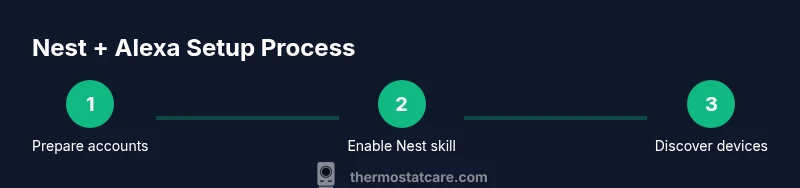
The Nest skill is the bridge that lets Alexa talk to your Nest thermostat. To enable it, open the Alexa app, navigate to Skills & Games, search for Nest, and enable the skill. You’ll be prompted to sign in with your Nest/Google account credentials and grant the necessary permissions. This step is essential to allow Alexa to access your thermostat’s status and perform commands. After enabling, you should see the Nest device discovered in the Alexa app, ready for the next step. If discovery fails, check your Wi‑Fi, ensure the Nest app is online, and confirm there are no conflicting accounts.
Linking accounts securely and managing permissions
Linking accounts securely means authorizing Alexa to access only what is needed to control your thermostat. In the Alexa app, follow the prompts to sign in to your Nest account and review the permission scopes. If you share your home with others, consider adding shared accounts or voice profiles to limit access to sensitive settings. For privacy, enable two-factor authentication on both Nest and Amazon accounts and review third-party access periodically. Thermostat Care recommends enabling activity logging where available so you can review voice commands and changes over time.
Voice commands you can use and examples
Once linked, you can issue simple voice commands to control temperature, modes, and schedules. Examples include: “Alexa, set the thermostat to 72 degrees,” “Alexa, set Nest to Eco mode,” or “Alexa, what’s the current temperature in the living room?” You can also create routines that trigger based on time of day or presence sensors, e.g., “Alexa, good morning” could raise the thermostat to a comfortable waking temperature. For more complex tasks, combine two actions in a single command, such as adjusting temperature and fan mode together.
Troubleshooting common issues and edge cases
If Alexa doesn’t respond to thermostat commands, verify that the Nest device is online and that the Nest skill is enabled and linked correctly. Ensure the correct device is selected in the Alexa app, especially if you have multiple thermostats or zones. If discovery fails, refresh the connection by disabling and re-enabling the Nest skill, then re-link your accounts. In some cases, firewall settings or router configuration can block communication; restart your router and check that your devices are on the same network. Thermostat Care also notes that some features may require the Nest app or Alexa to refresh tokens after updates.
Privacy, security, and best practices
Protecting your home network is essential when integrating smart devices. Use strong, unique passwords for Nest and Amazon accounts, enable two-factor authentication, and review app permissions regularly. Keep your firmware up to date on the Nest thermostat and your Alexa devices. Consider limiting voice control to essential features during times when guests are present and disable sharing of sensitive routines when not needed.
Real-world scenarios and getting the most out of the setup
In daily life, nest thermostat and alexa integration shines during busy mornings, evenings, or when returning home with groceries. You can set a predictable routine that lowers energy use when the house is empty and raises comfort when you’re almost home. For larger homes, grouping zones and using scene-based commands can simplify climate control. The goal is consistent comfort with minimal manual interaction, without sacrificing energy efficiency or privacy.
Authority notes and guidance
For more technical and policy context on smart thermostat usage, refer to reputable sources on energy efficiency and privacy. This article draws on general best practices from authoritative institutions and industry guidelines to help homeowners implement voice-controlled thermostats safely and effectively. Always verify compatibility with the latest app versions and follow manufacturer recommendations for security settings.
Tools & Materials
- Smartphone or tablet with internet access(Needed to install and manage both apps)
- Alexa-enabled device (e.g., Echo)(Required for voice control)
- Nest thermostat installed and online(Must be connected to the Nest account)
- Nest app(Used to verify device status and location)
- Alexa app(Used to enable and configure the Nest skill)
- Stable Wi-Fi network(Reliable connection reduces dropouts)
- Nest and Amazon account credentials(Needed to sign in and authorize access)
- Optional: secondary device for setup verification(Helps with cross-checking settings)
Steps
Estimated time: 15-25 minutes
- 1
Verify prerequisites
Confirm you have a Nest thermostat installed, a compatible Alexa device, and active accounts for both services. Ensure your Wi‑Fi is stable and that you can sign in on both the Nest and Alexa apps. This foundation prevents common setup errors and saves time later.
Tip: Have your Nest and Amazon login details handy before you start. - 2
Install or update apps
Update the Nest app and the Alexa app to the latest versions. This ensures compatibility with the latest Nest features and Alexa capabilities. If you’re on a shared device, sign out and sign back in to refresh tokens.
Tip: Restart the phones after updating to ensure new permissions are applied. - 3
Enable the Nest skill in Alexa
Open the Alexa app, go to Skills & Games, find the Nest skill, and enable it. You’ll be prompted to sign in with your Nest/Google account and grant necessary permissions. This linking is essential for Alexa to see and control the thermostat.
Tip: Use a strong, unique password for your Nest/Google account to protect access. - 4
Link accounts and authorize
Follow the on-screen prompts to link your Nest account to Alexa. Review the scopes requested and approve them. This step vaults your thermostat control behind a secure authentication layer.
Tip: Enable two-factor authentication on both accounts for extra security. - 5
Discover devices in Alexa
In the Alexa app, run a device discovery so Alexa can detect the Nest thermostat. If the device doesn’t appear, refresh the connection, ensure both apps are on the same network, and try again.
Tip: If you have multiple thermostats, ensure you’re selecting the correct one in the app. - 6
Test commands and set up routines
Try basic commands like setting a temperature and switching modes. For daily use, create routines (e.g., ‘Good morning’ or ‘Away’) to automate temperature changes. This saves time and reduces manual adjustments.
Tip: Document a few starter commands for guests or family members. - 7
Troubleshoot and refine
If commands fail, verify network status, re-run device discovery, and check permissions. Review logs if available and re-link accounts if tokens expired. Tuning may be needed after app updates.
Tip: Keep a short checklist handy for common failure points.
Questions & Answers
Can I use Nest with Alexa if I have a Google account?
Yes. You can use Nest with Alexa by enabling the Nest skill and linking your Nest/Google account to Alexa. This enables voice control for basic thermostat tasks.
Yes. You can link Nest to Alexa to control your thermostat by voice.
What commands work with Nest and Alexa?
Common commands include setting a specific temperature, switching modes, and asking for the current temperature. You can also trigger routines to automate changes at certain times or events.
You can set temperature, switch modes, and run routines via voice.
Why isn’t Alexa responding to thermostat commands?
Check that the Nest skill is enabled and linked, confirm device discovery, and ensure both apps are on the same network. Re-authenticating the accounts often resolves token issues.
Check skill linking, re-discover devices, and verify network connectivity.
Is it secure to link Nest and Alexa?
Linking uses account authentication and permissions. Enable two-factor authentication on both services and review permissions regularly to minimize risk.
Security hinges on strong passwords and two-factor authentication.
Do I need a Nest thermostat to use Alexa voice control?
Yes, you need a Nest thermostat or compatible Nest device connected to a Nest account to enable voice control through Alexa.
A Nest device is required to control it with Alexa.
Can I control multiple thermostats with Alexa?
If you have more than one Nest thermostat, ensure each one is properly named and discovered in Alexa to control them individually.
Yes, you can, as long as each thermostat is discovered and labeled.
Watch Video
What to Remember
- Link Nest and Alexa securely for voice control.
- Follow a clear step-by-step setup to avoid common issues.
- Use routines to automate daily climate tasks.
- Prioritize privacy and security in smart-home integrations.
- Test and refine commands for reliable performance.