Ecobee Home Assistant: A Practical Integration Guide
Learn how to connect your Ecobee thermostat to Home Assistant, create useful automations, and optimize comfort and energy usage with a practical, step-by-step guide.


This guide shows homeowners how to integrate ecobee home assistant, enabling automations that adjust temperature, schedules, and energy usage. You’ll learn prerequisites, setup steps, and practical examples to improve comfort and efficiency using the Ecobee integration in Home Assistant.
Why integrate ecobee with Home Assistant
According to Thermostat Care, integrating ecobee home assistant provides a unified view of climate control and unlocks powerful automations that save energy while keeping your home comfortable. The combination of Ecobee’s thermostat capabilities with Home Assistant’s flexible automation platform lets you coordinate temperature with occupancy sensors, weather data, and other smart devices. For homeowners, this means fewer manual tweaks and more reliable schedules, which can reduce energy waste and improve daily life. The interoperability also supports future-proofing as you add more smart devices or migrate to newer HA features. By understanding the core principles of data sharing and automation triggers, you’ll be able to design routines that feel almost invisible yet deliver tangible comfort.
In practice, expect a steady rise in automation quality as you refine sensor inputs, timing windows, and climate targets. This guide emphasizes practicality over theory, with clear steps, real-world examples, and safety-minded best practices. You’ll gain confidence as you see how ecobee data—like current temperature, setpoints, and occupancy—can inform Home Assistant automations without requiring complex custom code. The result is a more responsive, energy-conscious home that still respects user preferences and manual overrides when needed.
wordCount”:0},{
Tools & Materials
- Home Assistant instance (HA Core or Home Assistant OS)(Ensure HA is updated to the latest stable release before starting.)
- Ecobee thermostat with an active account(Have your Ecobee My Settings ready and confirm you can log into the Ecobee app.)
- A computer, tablet, or smartphone to configure integrations(Prefer a device with a stable web browser.)
- Stable Wi‑Fi network with internet access(A reliable connection helps the OAuth flow during setup.)
- Optional: MQTT broker for advanced local automations(If you plan to build offline automations, consider MQTT as a bridge.)
- Backup plan for configuration (notes or export of HA config)(Best practice before major changes.)
Steps
Estimated time: 60-90 minutes
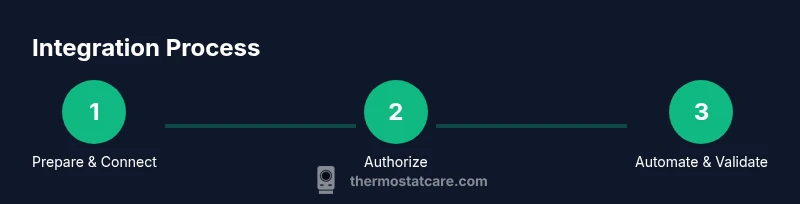
- 1
Verify prerequisites
Confirm you have a working Home Assistant instance, active Ecobee account, and a device for setup. Double-check that you can access both the Ecobee app and HA UI. This step prevents surprises during integration.
Tip: If either account is locked, reset passwords before starting to avoid OAuth errors. - 2
Open Home Assistant Integrations
Navigate to Settings > Devices & Services > Integrations and choose Add Integration. Look for Ecobee in the list and select it to begin the pairing flow.
Tip: Use a computer for easier navigation; mobile can work but may be cramped. - 3
Authorize Ecobee in HA
A browser window will prompt you to log into your Ecobee account and authorize Home Assistant to access thermostat data. Complete the OAuth flow and return to HA.
Tip: If the window fails to appear, try clearing the HA browser cache or switching to another browser. - 4
Select climate entities to expose
After authorization, HA will display Ecobee climate entities (temperature, setpoints, schedules). Choose which entities to expose to automations and dashboards.
Tip: Exposing only needed entities reduces UI clutter and automations noise. - 5
Create a basic automation
In HA, craft a simple automation: when occupancy changes to Home, adjust setpoint to a comfortable value. This demonstrates the data flow from Ecobee to HA automations.
Tip: Test with a short duration (e.g., 15 minutes) to verify changes behave as expected. - 6
Add a weather-based adjustment
Incorporate weather data to pre-cool or pre-heat based on forecasted outdoor temperature. This improves comfort while avoiding energy waste.
Tip: Use a condition-based trigger to prevent unexpected temperature swings. - 7
Configure dashboards
Create a dashboard card showing current temperature, target setpoint, and last automation action. A quick glance helps you monitor performance.
Tip: Keep critical metrics visible to facilitate quick manual overrides if needed. - 8
Test edge cases
Simulate device offline, network interruption, or Ecobee disconnects. Ensure automations fail gracefully and revert to safe defaults.
Tip: Always have a manual override path in case of automation downtime. - 9
Document and back up
Record your integration steps, screenshot settings, and automation logic. Back up HA configuration so you can recover quickly after updates.
Tip: Version control your configurations if possible.
Questions & Answers
What is the main benefit of linking Ecobee with Home Assistant?
The integration enables smarter automations that coordinate thermostat behavior with occupancy, weather, and other smart devices, improving comfort and energy efficiency.
Linking Ecobee with Home Assistant lets your thermostat work with occupancy and weather data for smarter automations.
Do I need cloud access, or can I run everything locally?
The standard Ecobee integration uses cloud access to sync data with Home Assistant. Local-only operation is not typically supported for Ecobee devices, but you can minimize cloud calls with well-designed automations.
Ecobee integration relies on cloud access, but you can optimize performance with efficient automations.
What data is shared between Ecobee and Home Assistant?
The integration exposes thermostat state data (temperature, humidity, setpoints) and sensor readings to HA to drive automations. Sensitive credentials are not exposed in plain text.
Your thermostat data is shared with Home Assistant to drive automations; credentials remain protected.
Can I still control the thermostat manually when automations are active?
Yes. You can override automations at any time from the Ecobee app or the HA dashboard. Automations will resume according to their triggers after the override ends or a condition changes.
Manual control is always available; automations resume when conditions change.
What should I do if Ecobee stops syncing with Home Assistant?
Check network connectivity, reauthorize the Ecobee integration, and review the HA logs for OAuth or API errors. Rebooting the HA host can resolve temporary connectivity hiccups.
If syncing stops, verify network and reauthorize the integration, then check logs for errors.
Watch Video
What to Remember
- Integrate Ecobee with Home Assistant to unlock cross‑device automations
- Authorize securely and expose only needed entities for cleaner dashboards
- Test, document, and back up configurations to ensure reliability