Sensi Thermostat Login: Secure Access and Troubleshooting
Learn how to sign in to Sensi thermostat, recover passwords, and secure your account. A practical, step-by-step guide from Thermostat Care to help homeowners troubleshoot login issues.


With a Sensi thermostat login, you can control your heating and cooling remotely. Sign in through the Sensi app or the web portal using your Emerson account email and password, then verify your device’s online connection. If you’re locked out, use the password recovery flow, check your email for reset links, and enable two-factor authentication for extra security.
Understanding the Sensi login ecosystem
Sensi thermostat login is the gateway to managing schedules, modes, and remote access for your smart home climate. You can sign in through the Sensi mobile app or the web portal, whichever you prefer for comfort and convenience. According to Thermostat Care, a secure login is the first line of defense for your smart thermostat, and the Thermostat Care team recommends following official login paths and avoiding credential reuse across sites. In practice, the right login flow reduces the risk of unauthorized control and provides a smoother setup experience. The term "sensi thermostat login" refers to both methods: signing in on a smartphone app and signing in via a browser on a computer. By understanding the two paths, you’ll know where to start and how to verify you are on the official site or app.
Preparing for a smooth login
Before you sign in, gather what you need and set expectations for a quick, successful session. Have your Emerson account email ready, along with the password you use for Sensi. If you enable two-factor authentication (2FA), keep your authenticator app or backup codes accessible. A stable internet connection matters—switch to a strong Wi‑Fi network if you’re on cellular data, and avoid public networks when you’re handling sensitive credentials. For better security, consider using a password manager to store the Sensi credentials securely and avoid reusing passwords across services. This preparation minimizes friction during login and adds a layer of protection against phishing attempts.
Mobile app vs web portal: which path to take
The Sensi app on iOS and Android offers quick access, real-time alerts, and direct control of your thermostat from anywhere. The web portal provides a larger-screen experience and may feel easier if you’ve already logged into the Emerson ecosystem on your computer. Use whichever path you’re most comfortable with, or switch between them as needed. If you rely on voice assistants or smart home hubs, ensure the login status is synchronized across devices. Security-wise, both paths share the same account credentials, so protecting that information is essential.
Step-by-step login flow (mobile app)
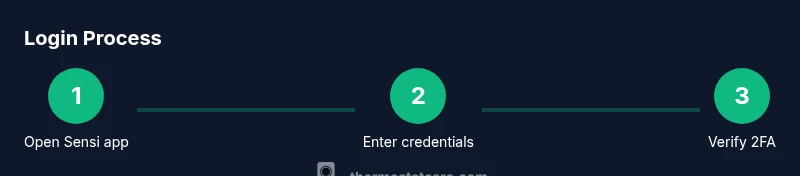
Log in from the Sensi mobile app by following the guided prompts. The app stores your session securely, but you should still sign out on shared devices. If you’ve enabled 2FA, you’ll be prompted for the verification code after you enter your password. The mobile flow is optimized for touch input, often making password entry faster on a small screen.
Step-by-step login flow (web portal)
Access the Sensi web portal from a trusted browser. After entering your Emerson account email and password, you may be asked for a one-time code if 2FA is enabled. Use the authenticator app or backup codes, then confirm you’re signed in. On desktop, you can bookmark the official login page, which reduces the risk of phishing. Always verify the site’s URL and look for a secure connection (https).
Troubleshooting login issues
If you encounter problems signing in, start with the basics: verify your internet connection, confirm you’re using the official Sensi login sources, and make sure your time and date settings are correct on the device. If you forget your password, use the “Forgot password?” link to reset it via your registered email. For 2FA problems, ensure access to your authenticator app or backup codes. If login continues to fail, check for account lockouts or recent security alerts from Emerson and contact support if needed.
Security best practices for Sensi login
Security matters every time you sign in. Use a strong, unique password for your Emerson account, and enable two-factor authentication to add a second layer of protection. Avoid saving credentials in plain text on devices you don’t control, and beware of phishing attempts that mimic the official Sensi login page. According to Thermostat Care analysis, implementing solid login hygiene reduces the likelihood of unauthorized access in 2026. Regularly review active sessions and sign out from devices you no longer use.
Quick post-login checks and maintenance
After you sign in, verify that your thermostat is reachable and that schedules and room temperatures reflect your preferences. If you suspect unauthorized changes, log out of all sessions and reset your password. Periodically review connected devices, update the Sensi app, and keep your device firmware current. A routine login check helps maintain a secure and reliable climate-control setup.
Tools & Materials
- Smartphone or tablet with Sensi app installed(Ensure the app is updated to the latest version before logging in.)
- Stable internet connection(Wi-Fi is preferred for stable access; avoid flaky public networks.)
- Emerson account email/username(You’ll need this to sign in; keep it in a secure place.)
- Web browser (Chrome/Edge/Safari)(Optional if you’re using the web portal.)
- Password manager (optional)(Helpful for storing strong, unique passwords.)
Steps
Estimated time: 15-25 minutes
- 1
Choose your login path
Decide whether you will sign in via the mobile app or the web portal. Each path uses the same Emerson account credentials, so pick the method you’ll use most often.
Tip: Bookmark the official login URL if you’re using the web portal. - 2
Open the login screen
Launch the Sensi app or navigate to the official login page in your trusted browser. Make sure you are connected to a secure network and not on a shared public computer.
Tip: Look for the padlock icon and https in the URL to confirm security. - 3
Enter your Emerson account credentials
Type your email/username and password carefully. Take a moment to slow down and avoid typos, especially on mobile keyboards.
Tip: If you forget your password, use the password reset option immediately. - 4
Complete two-factor authentication (if enabled)
Enter the verification code from your authenticator app or enter a backup code if prompted. This step adds a critical layer of security beyond the password.
Tip: If you don’t receive a code, check time sync on your authenticator app. - 5
Review active sessions
Once signed in, review the devices and sessions that have access. Sign out from any device you no longer control, especially shared or public devices.
Tip: Use the sign-out option on each device you don’t recognize. - 6
Troubleshoot login issues
If login fails, re-check credentials, verify the URL, and ensure your device’s time is correct. If problems persist, use password recovery or contact support.
Tip: Avoid retrying with the same wrong password multiple times in quick succession to prevent lockouts.
Questions & Answers
How do I reset my Sensi account password?
Open the login screen and click 'Forgot password?' Follow the prompts to receive a reset link via your registered email, then create a new password. Make sure the new password is unique and not used elsewhere.
To reset your password, use the forgot password option and follow the email steps to create a new, unique password.
What should I do if I forgot the email associated with my Emerson account?
Check any saved emails from Emerson or Sensi for hints about the registered address. If you can’t locate the email, contact support with identifying information to verify ownership and recover access.
If you can’t find the email, try recovery via any known address or contact support with proof of ownership.
Can I login from multiple devices at once?
Yes, you can sign in on multiple devices. Just sign out from devices you no longer use to reduce the chance of unwanted access.
Yes, you can be signed in on multiple devices; sign out on unused devices to stay secure.
Is two-factor authentication required for Sensi login?
Two-factor authentication is optional but strongly recommended for better security. If enabled, you will need to provide a verification code in addition to your password.
Two-factor authentication isn’t required, but it’s highly recommended for extra security.
What should I do if the login page shows an error?
Check your internet connection, ensure you’re on the official login page, and verify the time settings on your device. If the error persists, reset your password or contact support for help.
If you see an error, check your connection and URL, then try a password reset or contact support.
How do I sign out securely after logging in on a shared device?
Use the sign-out option in the app or web portal, then consider clearing the browser or app data on shared devices to prevent unauthorized access.
Always sign out and clear data on shared devices to protect your login.
Watch Video
What to Remember
- Sign in via app or web portal using a secure path
- Use strong passwords and 2FA for protection
- If you forget credentials, use the recovery flow
- Always verify you’re on official Sensi login sources