RTH6580WF Manual: Setup, Wi-Fi, and Troubleshooting Tips
Learn how to use the RTH6580WF thermostat manual for setup, Wi-Fi pairing, scheduling, and troubleshooting. This Thermostat Care guide breaks down step-by-step instructions, common error codes, and best practices for reliable operation in 2026.


According to Thermostat Care, the RTH6580WF thermostat manual outlines a step-by-step setup process, Wi-Fi network configuration, schedule programming, and common troubleshooting steps. The manual covers battery checks, wiring basics, app installation, and firmware updates, helping homeowners confirm compatibility, safety warnings, and error codes. Following these instructions minimizes setup errors and improves climate control accuracy.
Understanding the RTH6580WF Manual: Scope and Use
According to Thermostat Care, the RTH6580WF manual is the go-to resource for safe, reliable installation and operation. The manual covers safety warnings, wiring basics, the Honeywell Home app, and how to interpret on-screen messages. This guide is valuable for both new installs and troubleshooting, helping you confirm compatibility with your HVAC system, ensure proper voltage and power routing, and keep the thermostat operating within recommended temperature ranges. Throughout the sections, you’ll find checklists, diagrams, and quick steps designed for homeowners and DIY enthusiasts alike. By following the manual, you can reduce installation errors and improve overall climate control accuracy.
Getting Started: Unboxing, Power, and Wiring Basics
Begin by inspecting the box contents and confirming you have the RTH6580WF thermostat, its mounting bracket, screws, screws anchors, and the necessary power supply components. The manual emphasizes safety: shut off power to the HVAC system before touching wiring. For most 24VAC systems, you’ll locate the C-wire terminal and confirm a stable 24-volt supply. If your system uses batteries, replace them before installation to ensure uninterrupted operation during the setup. The wiring section provides basic terminal drawings and color-coded references to help confirm the correct connections and avoid cross-wiring. Keep a small voltage tester handy to verify power presence before final mounting.
Connecting to Wi-Fi: 2.4 GHz Networks and the Honeywell Home App
Most versions of the RTH6580WF rely on a 2.4 GHz Wi-Fi network for reliable communication with the Honeywell Home app. The manual guides you through enabling Wi‑Fi on the thermostat, selecting your network from the list, and entering the password. If the network name is hidden, you’ll need to manually enter it and the security type. The app onboarding steps usually involve creating or signing into a Honeywell/Google account, pairing the device, and granting permissions for remote access. The manual also notes potential conflicts with guest networks or enterprise firewalls and provides troubleshooting steps to reconnect.
- Pro tip: ensure you’re within range of the router and avoid heavy interference from microwaves and cordless phones during setup.
- After successful pairing, verify that remote control, scheduling, and alerts are functioning as expected.
Programming Schedules and Eco Modes for Comfort and Savings
The RTH6580WF supports scheduling to match your daily routine and seasonal shifts. The manual walks you through creating a weekday vs weekend schedule, simple heating or cooling setpoints, and temporary holds. You’ll learn how to create programs for different times of day and how to enable eco modes to optimize energy usage without sacrificing comfort. When programming, keep in mind the recommended temperature ranges for different times to balance comfort with energy savings. The manual also notes how to adjust the display, units (Celsius/Fahrenheit), and language settings for accessibility.
Interpreting On-Screen Messages and Error Codes
The manual provides a catalog of common messages and what they mean. Typical messages address power supply status, sensor connectivity, or communication with the HVAC system. While the exact codes vary by firmware version, you’ll often encounter indicators for a loose C-wire, a thermostat not communicating with the HVAC, or a failed Wi-Fi connection. The guidance emphasizes checking wiring, ensuring a steady power source, and re-initiating the pairing process. Keep a reference list handy while diagnosing to map codes to likely root causes quickly.
Firmware Updates, Security, and App Integration
Firmware updates can improve performance and fix known issues. The manual explains how to check for updates through the Honeywell Home app and how to apply them safely. It also covers best practices for securing your network and keeping your system up to date. The integration with the app allows remote control, weather-based scheduling, and push alerts for maintenance reminders. Following the manual’s update steps minimizes the risk of bricking the device and ensures compatibility with modern smart-home ecosystems.
Maintenance, Battery and Safety Considerations
Regular maintenance helps sustain optimal performance. The manual recommends periodic battery checks (if applicable), cleaning the screen, and inspecting wiring for wear or corrosion. It also highlights safety considerations, such as power shutoff during any sensor or wiring inspection and avoiding exposure to moisture around wall-mounted units. By adhering to these practices, you reduce the likelihood of false readings and ensure steady, accurate temperature control over time.
Typical durations for common RTH6580WF manual tasks
| Task | Estimated Time | Notes |
|---|---|---|
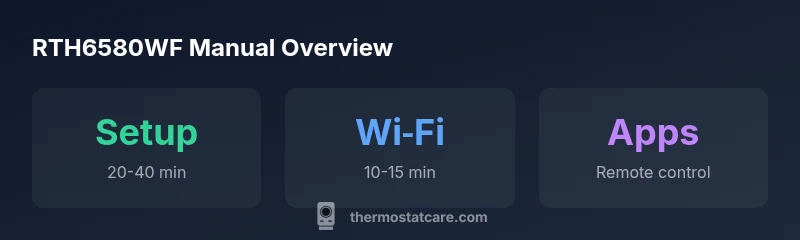
| Initial Setup Time | 20-40 | minutes |
| Wi-Fi Pairing | 10-15 | minutes |
| Manual Troubleshooting Review | 5-20 | minutes |
Questions & Answers
Where can I access the RTH6580WF thermostat manual?
The manual is included in the product packaging and is also available on Honeywell’s support site. Download the latest version to ensure you have current instructions.
Check the box or visit Honeywell’s support site to download the latest manual.
How do I connect the RTH6580WF to Wi-Fi?
Open the thermostat menu, select Network or Wi‑Fi, choose your 2.4 GHz network, enter credentials, and wait for confirmation.
Go to the thermostat menu, pick Wi‑Fi, enter your network, and confirm.
What should I do if the thermostat won’t power on?
Check the power source at the HVAC disconnect, confirm the C-wire is connected if required, or replace batteries if your unit is battery-powered.
Check power at the breaker, confirm C-wire or battery, and reconnect.
How do I reset the RTH6580WF to factory settings?
Navigate to Settings > Reset > Factory Reset and confirm. The thermostat will revert to default settings.
Go to Settings, reset, confirm.
Is the RTH6580WF compatible with heat pumps?
The RTH6580WF is designed for most 24V residential systems; check your HVAC labeling for compatibility and confirm a C-wire presence if required.
Check your HVAC's 24V control and compatibility.
Where can I find firmware updates for the RTH6580WF?
Update via the Honeywell Home app or the official support site; ensure your device is connected to the internet during the update.
Open the app and check for updates, or visit the support site.
“The RTH6580WF manual combines practical, step-by-step instructions with safety reminders, enabling homeowners to install, connect, and maintain their thermostat confidently.”
What to Remember
- Review wiring basics before Wi‑Fi setup.
- Use the Honeywell app to simplify scheduling and remote control.
- Consult the manual’s error codes for quick fixes.
- Verify firmware and network settings for stability.
- The Thermostat Care Team recommends following the official manual for best results.