How to Use Ecobee Thermostat: A Practical Guide
Learn how to use your Ecobee thermostat with step-by-step setup, scheduling, app control, and voice integrations. Thermostat Care guides homeowners to optimize comfort and energy savings.


By following these steps, you’ll master Ecobee thermostat basics—from installation to daily operation and remote control. This guide covers Wi‑Fi setup, account creation, sensor placement, scheduling, eco features, and voice integrations. After reading, you’ll confidently manage comfort, save energy, and troubleshoot common issues for a smoother home climate. This quick guide sets you up for deeper steps below.
Getting Started: Prerequisites and Safety for Ecobee
Getting started with how to use ecobee thermostat requires a clear plan and a safe workspace. Verify that your HVAC equipment is compatible with Ecobee and that you have a reliable power source and a strong, stable Wi‑Fi connection. According to Thermostat Care, a well‑powered thermostat and stable network are the foundation of a smooth experience. The Thermostat Care team found that homeowners who prepare wiring and space before install report fewer issues during setup. Gather the essential tools, create your Ecobee account, and download the Ecobee app before you touch the thermostat. This preparation reduces surprises during wiring and mounting and sets you up for a safe, successful installation. In addition, check whether your wires include a common (C) wire; this power source is important for most Ecobee configurations. If you discover a lack of power on the wall plate, plan a solution now—don’t improvise in the moment. Finally, establish a safe working environment: turn off power at the circuit breaker before touching any HVAC wiring and keep children and pets away from the work area.
Understanding the Ecobee Interface
Once you power on the Ecobee thermostat, take a moment to familiarize yourself with the main navigation. The home screen shows current temperature, mode (heat, cool, auto), and occupancy status. The menu gives access to the temperature setpoints, sensor readings, and Eco+ features. Use the up and down arrows or the touchscreen to adjust settings, and rely on the on‑screen tips if you’re unsure about a control. The terminology is designed for homeowners, not technicians, so you won’t need prior HVAC experience to operate it. For many, the first win is simply learning where to find the climate, sensors, and automation options. As you grow more comfortable, you can begin tailoring the interface to show the most useful information in real time and reduce the number of steps required to reach your preferred temperatures.
Creating schedules and using sensors
Ecobee thrives on smart scheduling and multi‑sensor data. Start by creating a daily schedule that aligns with your routines—wake, leave, return, and sleep. Use occupancy sensing to adjust automatically: if a room is empty, the thermostat can reduce temperature to save energy; if someone is present, it can warm or cool toward comfort. Place additional sensors in living areas and bedrooms to better balance temperature across zones. Eco+, Ecobee’s energy‑saving feature, can fine-tune your schedules by learning patterns, outdoor conditions, and user overrides. When you set up schedules, keep a simple rule: gradual changes over a 15–60 minute window feel more comfortable and avoid rapid temperature swings. This section teaches you how to leverage sensors and schedules to maintain comfort while conserving energy.
App, voice assistants, and integrations
Control from anywhere using the Ecobee app on iOS or Android. You can adjust setpoints, change modes, view current temperatures, and receive alerts even when you’re away. If you own smart speakers or hubs, Ecobee supports voice integrations through built‑in Alexa and compatibility with other assistants. Linking your Ecobee account to a smart home setup centralizes climate control and automations. You’ll also find weather data, energy history, and usage insights that help you refine your routines over time. Keep the app updated to access new features and security improvements, and consider using push notifications for important events like filter changes or maintenance reminders.
Connectivity, sensors, and power considerations
Connectivity is essential for remote control and data syncing. Ensure your Wi‑Fi signal reaches the thermostat and remains stable during routine usage. If you notice disconnects, try restarting the router and re‑connecting from the Ecobee app. Check that your C‑wire is secure at both ends when wiring conflicts arise; if you lack C‑wire, Ecobee offers an alternative power extender kit (PEK) with step‑by‑step wiring guidance. Sensor placement matters: position room sensors out of direct sunlight, away from vents, and at approximately eye level to collect representative data. Finally, if you hear unusual clicking or the screen flickers, consult the troubleshooting steps in the official Ecobee guide and avoid DIY fixes that may affect safety.
Maintenance, firmware updates, and best practices
To keep your Ecobee thermostat functioning well, perform regular maintenance and firmware updates. Check for updates in the Ecobee app and apply them when available; updates often improve stability and security. Clean the front plate and sensors periodically to avoid false readings, and replace batteries in any wired sensors as recommended by the manual. Review your comfort schedules periodically; life changes—new occupants, seasons, or work patterns—mean you should adapt programs for continued energy savings. Finally, backup important settings by exporting a copy of your schedules, and consider documenting any custom setups so you can replicate them after a reset or replacement.
Tools & Materials
- Ecobee thermostat unit(Ensure model supports your HVAC system and features you plan to use)
- Smartphone or tablet(With the Ecobee app installed (iOS/Android, latest version))
- Stable Wi‑Fi network(2.4 GHz or 5 GHz; robust signal in the installation area)
- C-wire adapter or common wire kit(Use if your system lacks a dedicated C-wire)
- Screwdriver (Phillips #2)(For mounting bracket and wall plate screws)
- Level, pencil, mounting screws(To ensure precise, straight installation)
- Safety gear (optional)(Non‑contact tester, gloves for handling wires—optional)
Steps
Estimated time: 60-90 minutes
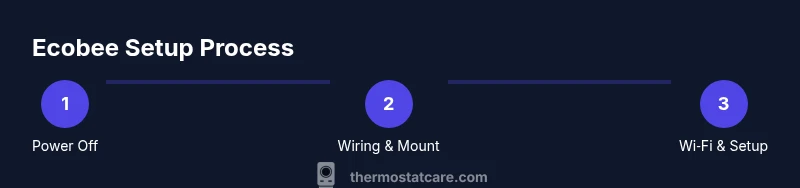
- 1
Power off the HVAC and prep the wall
Turn off power to the HVAC at the breaker. Remove the old thermostat faceplate and inspect the wall box for space and clean wiring. This ensures a safe environment before wiring begins.
Tip: Use a non‑contact tester to confirm power is off before touching any wiring. - 2
Remove the old thermostat and disconnect
Gently detach the old unit from the wall, exposing the backplate and wiring. Keep the wires in view so you can reference their positions when wiring the Ecobee backplate.
Tip: Take a quick photo of the wiring before disconnecting anything for future reference. - 3
Label and organize wires
Label each wire according to its terminal (R, C, Y, W, G, etc.) and keep them grouped by color. This makes mapping them to the Ecobee terminals straightforward.
Tip: Use the included labels or tape to prevent mix‑ups during transfer. - 4
Mount the Ecobee base
Place the Ecobee backplate on the wall, align with the box, and secure with screws. Ensure the base is level before tightening.
Tip: A level helps prevent a crooked display and misaligned terminals. - 5
Connect wires to the Ecobee backplate
Insert each labeled wire into the matching Ecobee terminal (R to R, C to C, etc.). Double‑check that each connection is snug and fully seated.
Tip: Do not force wires; if a wire won’t reach a terminal, trim and reseat carefully. - 6
Attach the thermostat head and restore power
Snap the display onto the base and reattach the wall plate. Turn power back on at the breaker and wait for the Ecobee to boot.
Tip: If it doesn’t power up, double‑check that the wires are fully seated and the breaker is on. - 7
Configure Wi‑Fi and create account
Follow the on‑screen prompts to connect the thermostat to Wi‑Fi and sign in or create your Ecobee account. Ensure a stable connection to access remote features.
Tip: Use a strong, password‑protected network to keep your device secure. - 8
Complete setup and test
Run through the setup wizard, verify temperature changes, and confirm that sensors report accurately. Test cooling and heating modes to ensure proper operation.
Tip: Note any discrepancies and adjust sensor placement or wiring if needed.
Questions & Answers
Do I need a C-wire to install an Ecobee thermostat?
Ecobee thermostats usually require a common (C) wire for consistent power. If your system lacks a C-wire, you can use Ecobee’s PEK or follow the manufacturer’s wiring alternatives. Check your wiring diagram before proceeding.
A C-wire is typically needed, but you can use a PEK if your system doesn’t have one.
Can I install Ecobee thermostat without professional help?
For standard systems, you can install it yourself by following the Ecobee manual and this guide. Complex zoning or unusual HVAC configurations may require a professional.
Yes, many homeowners install it themselves, but call a pro for complex setups.
How do I connect Ecobee to Wi‑Fi?
Use the Ecobee app or the on‑screen setup wizard to connect to your home Wi‑Fi. You’ll choose your network, enter the password, and confirm the connection.
Open the Ecobee app, select your network, enter the password, and connect.
How do I reset the Ecobee thermostat?
You can perform a soft reset via Settings or a factory reset if issues persist. A factory reset will erase saved schedules and preferences.
Reset through Settings or perform a factory reset if needed.
Can Ecobee control multiple zones or thermostats?
Yes, Ecobee supports sensors and zoning in many configurations to manage temperatures by room. Add sensors appropriately and verify compatibility with your system.
Yes, you can add sensors to manage different rooms.
What is Eco+ and how do I enable it?
Eco+ is Ecobee’s energy‑saving feature that optimizes temperature, occupancy, and learning. Enable Eco+ in the app under Eco+ settings or during setup.
Eco+ helps save energy by optimizing thermostat behavior.
Watch Video
What to Remember
- Install with a stable power and Wi‑Fi setup
- Use labeled wiring and proper mounting for reliability
- Leverage the Ecobee app and sensor data for comfort and energy savings
- Regularly update firmware and adjust schedules as needed