Can You Get a Thermostat App? A Practical Guide
Discover how to get and use a thermostat app, verify compatibility, choose the right app, and set up secure remote control for energy savings.


Yes — you can get a thermostat app. A thermostat app lets you control a compatible thermostat remotely, adjust schedules, monitor energy use, and receive alerts from your phone or tablet. To get started, you need a compatible thermostat, a smartphone or tablet, and an internet connection. Many apps also support voice assistants and cross-device syncing.
Why a thermostat app matters
If you’re asking can you get a thermostat app, the answer is yes—and the benefits extend far beyond occasional adjustments. A thermostat app puts climate control in the palm of your hand, whether you’re at home, at work, or on vacation. The Thermostat Care team notes that most modern smart thermostats ship with companion apps that centralize control, diagnostics, and energy analytics in a single, user-friendly interface. With a few taps, you can raise or lower the temperature, switch between heating and cooling modes, and check whether your system is running efficiently. For busy households, schedules, geofencing, and remote access reduce energy waste and keep your home comfortable without the need to remember to adjust the dial manually. The app ecosystem is evolving quickly, with updates that add new features such as occupancy sensing, weather-based adjustments, and integration with broader smart-home platforms.
According to Thermostat Care, many manufacturers publish robust app ecosystems that continuously improve usability, security, and interoperability with other smart devices. This makes it practical for most homeowners to start with a single compatible app and expand as needs grow.
- block formatting:
What a thermostat app can do for you
A thermostat app acts as a central control hub for your heating and cooling system. Remote control lets you adjust temperature from anywhere, which is especially handy when you’re commuting, traveling, or returning home to a comfortable environment. Scheduling features allow you to set daily or weekly programs that match your routines, helping reduce energy waste. Geofencing uses your phone’s location to adjust temperatures as you leave or approach home, which can save energy without manual intervention. Energy insights show you how much you’re saving and where consumption spikes occur. Many apps also provide maintenance alerts, firmware update prompts, and the ability to create multiple user profiles (so family members can adjust settings). If you use smart speakers, you can link the app to Alexa or Google Assistant for voice control. Remember to review privacy settings: some apps share data with energy providers or third parties, so choose settings that align with your comfort level. In practice, a strong app strategy translates to fewer cold mornings and fewer overheated afternoons.
Thermostat Care’s experience indicates that energy dashboards and routine automations are among the most valued features by homeowners, making it easier to see where energy is used and how small schedule tweaks can yield meaningful savings.
- block formatting:
How to check if your thermostat supports an app
Start by identifying your thermostat model and manufacturer. Most brands publish a companion app or list compatible devices on their official site or in the app store. Look for terms like “works with” or “app-enabled” in the product specs. If you already own the device, open the thermostat’s settings menu and look for an option to connect to a mobile app or cloud account. Ensure your thermostat has a recent firmware version and is connected to a stable Wi‑Fi network. Finally, download the recommended app from your platform’s app store and follow the on-screen prompts to link your device to your account. If you encounter issues, consult the manufacturer’s support resources or Thermostat Care’s troubleshooting guides. When in doubt, contact support with your model number and firmware version to verify app compatibility before you invest time in setup.
- block formatting:
Tools & Materials
- Smartphone or tablet(iOS or Android; ensure device is updated to the latest OS version)
- Stable Wi‑Fi network(High-speed connection preferred for smooth syncing)
- Compatible thermostat model(Check manufacturer site for app compatibility list)
- Thermostat account login(Create or sign into the manufacturer/app account)
- Power source for devices(Keep chargers handy during setup; batteries may drain during pairing)
Steps
Estimated time: 20-40 minutes
- 1
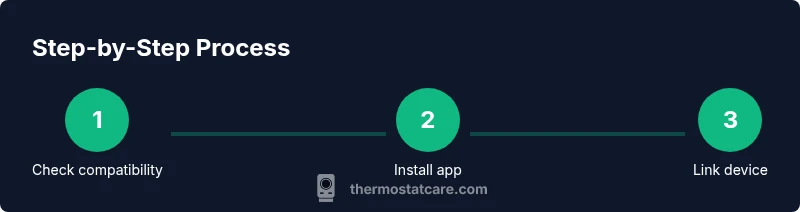
Verify compatibility
Identify your thermostat model and confirm it supports an official app. Check the manufacturer’s website or app store listing for compatibility notes and required firmware version.
Tip: Have your model number and firmware version handy before you start. - 2
Prepare your network and account
Ensure your Wi‑Fi is working and you have a valid account for the thermostat app. If you lack an account, create one and enable two-factor authentication if available.
Tip: Use a strong, unique password and enable MFA if offered. - 3
Download and install the app
From the phone’s app store, download the official app recommended by the thermostat manufacturer and install it on your device.
Tip: Turn on push notifications to receive alerts about temperature changes or maintenance reminders. - 4
Pair the thermostat to the app
Open the app, follow the on-screen prompts to discover your thermostat, and complete the linking process. You may need to place the thermostat in pairing mode.
Tip: If pairing fails, restart the app and device, then retry. - 5
Configure basic settings
Set your preferred schedule, desired temperatures for different times of day, and any geofencing or away modes you want to enable.
Tip: Start with a simple 2–3 tier schedule to test core functionality. - 6
Test remote control and save
From another room or away from home, adjust the temperature and verify that changes reflect on the thermostat in real time. Review privacy settings and data sharing options.
Tip: Document steps you took for future reference or troubleshooting.
Questions & Answers
Can I control my thermostat remotely without Wi‑Fi?
Most remote control features require internet access. Some basic local control might still work via the thermostat’s built-in interface, but full remote functionality depends on Wi‑Fi or cellular connectivity.
Remote control without Wi‑Fi is limited; you’ll usually need internet to access the app and adjust settings remotely.
Is a thermostat app secure?
Security varies by app and device. Use MFA, strong passwords, keep firmware updated, and review privacy settings to minimize data sharing with third parties.
Yes, security depends on you. Enable two‑factor authentication and regular updates to stay protected.
Do I need a smart thermostat to use an app?
You don’t always need a smart thermostat, but most app integrations work best with a Wi‑Fi enabled, app‑friendly model. Check your device’s compatibility before buying.
Most apps work with smart thermostats; check compatibility before purchasing.
How do voice assistants work with thermostat apps?
Many apps support Alexa, Google Assistant, or HomeKit. You can control temperature, schedules, and scenes through voice commands once linked.
You can use voice assistants once you link the app to your preferred ecosystem.
Can multiple people use the same app on different devices?
Yes. Many apps support multi‑user access with role-based permissions, so household members can adjust settings without sharing passwords.
Most apps let multiple people control the thermostat with permissions.
What if my thermostat isn’t compatible with any app?
If there’s no official app, you may still control via physical interface or check for a bridge or hub compatibility. Consider upgrading to a model with app support.
If it isn’t compatible, you might need a model upgrade or a bridging hub.
Watch Video
What to Remember
- Verify compatibility before downloading the app
- Set up schedules to maximize savings
- Secure your account with MFA and strong passwords
- Test remote control and privacy settings